 Genius Asian
 Buy, Unpack & Use A Gopro Camera in One Hour
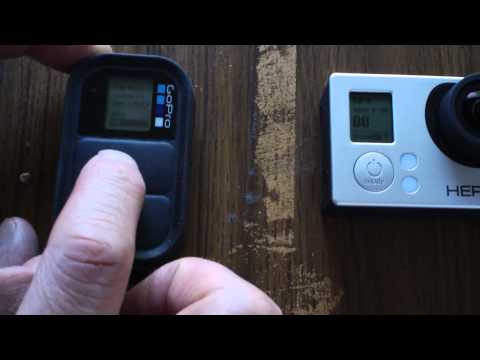
Buy, Unpack & Use A Gopro Camera in One Hour
Key Takeaways
- Setting up a GoPro from unboxing to recording your first footage can be accomplished in under one hour
- The video walks through the entire process: unboxing, charging, setup, mounting, and first recording
- Understanding the essential settings versus the advanced options saves significant time during initial setup
- The GoPro’s small size and versatile mounting system make it ideal for action, travel, and outdoor documentation
- You do not need to master every feature before your first use — start simple and learn as you go
From Box to First Recording
GoPro cameras are packed with features, which can make the initial setup feel overwhelming. The manual is thick, the menu system has dozens of options, and the mounting accessories offer countless configurations. This video cuts through the complexity and focuses on what you need to know to get from an unopened box to recording your first footage in under an hour.
The approach is practical: get the camera working with sensible default settings first, then explore advanced features later as you gain experience.
Unboxing and Charging
The box contains the camera body, a rechargeable battery, a USB charging cable, mounting hardware (typically a frame or housing and adhesive mounts), and documentation. Before doing anything else, insert the battery and connect the camera to a power source for charging. While the battery charges (approximately 1-2 hours for a full charge, though you can begin using it at partial charge), you can familiarize yourself with the physical controls and mounting options.
Essential Initial Setup
When the camera powers on for the first time, it walks you through basic setup. The key decisions at this stage are setting the date and time correctly (important for organizing footage later), choosing your preferred video resolution, and connecting to the GoPro app on your phone if you want remote control and preview capabilities.
For resolution, start with 1080p at 30 frames per second. This produces excellent quality video, uses less storage than 4K, and does not require a powerful computer for editing. You can always increase resolution later once you understand the tradeoffs between quality, file size, and battery life.
Mounting Options
The GoPro’s versatility comes from its mounting system. The adhesive mounts stick permanently to helmets, dashboards, and other flat surfaces. The clip mount attaches to straps, backpack straps, and clothing. The tripod mount connects to any standard camera tripod. For your first recording, the simplest option is handheld or placed on a flat surface.
Your First Recording
Press the record button. That is genuinely all it takes for your first footage. The camera handles focus, exposure, and white balance automatically. Point it at your subject, ensure the lens is clean, and let it record.
After recording, review footage either on the camera’s built-in screen, through the GoPro app on your phone, or by removing the microSD card and inserting it into a computer.
Tips from the Learning Curve
Several lessons emerge from the first hour of GoPro use. Battery life at 1080p/30fps is approximately 90 minutes of continuous recording. A 32GB microSD card holds about 4 hours at this setting. The wide-angle lens captures more of the scene than you expect, so position the camera closer to subjects than you would with a phone camera. Wind noise is the biggest audio quality challenge — a simple foam cover or strategically positioning the camera away from direct wind helps significantly.
Beyond the First Hour
Once you have captured your first footage and confirmed everything works, a few additional features are worth exploring in your second session. Protune mode allows manual control of white balance, ISO, and sharpness for better post-production flexibility. Time-lapse mode captures a photo at set intervals and compiles them into a fast-forward video, perfect for sunsets, construction projects, or long drives. Burst mode takes multiple photos in rapid succession, ideal for action moments where timing a single photo is difficult. Voice control allows hands-free operation by speaking commands like “GoPro, take a photo” or “GoPro, start recording,” which is invaluable when the camera is mounted out of reach. Each of these features can be explored individually and adds a new dimension to what you can capture.
For more camera and travel tips, see preparing for Hawaii trip and Carnival Breeze cruise ship.